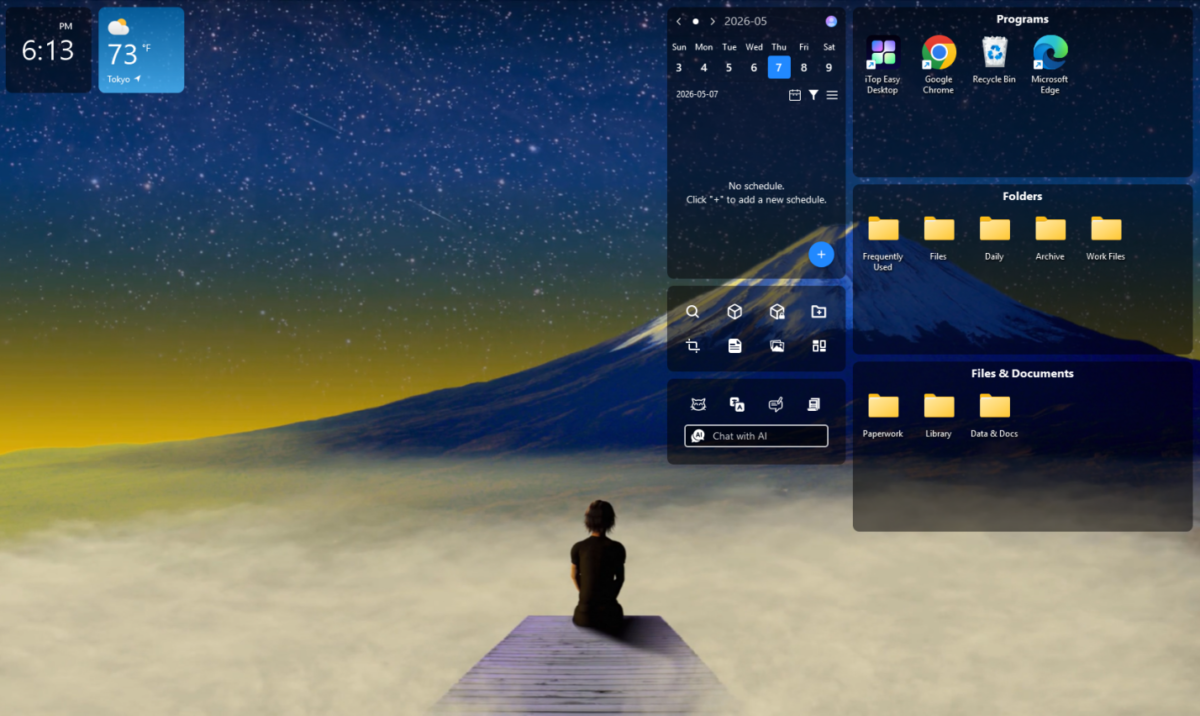

iTop Easy Desktop was one of those tools I started looking at after realizing that my Windows desktop had become a mess. I had screenshots sitting next to documents, application shortcuts mixed with folders, and files I had downloaded weeks ago but still hadn’t moved anywhere.
The frustrating part wasn’t just how the desktop looked. It was how much time I was wasting trying to find things. I had tried cleaning it manually before, but the result never lasted. A few days later, the same clutter would return. So instead of repeatedly moving files around myself, I decided to look for a desktop organizer that could give me a more practical system.
Why My Desktop Had Become So Difficult to Manage
My problem was actually pretty simple.
Whenever I needed a file temporarily, I would save it to the desktop because it was convenient. The problem was that “temporary” files had a habit of staying there.
A screenshot became five screenshots. One PDF became ten documents. Then came folders for different projects and shortcuts for applications I used regularly.
Eventually, I had so many icons that finding something felt like searching through a drawer full of random papers.
I could have continued creating ordinary Windows folders, but that still meant manually sorting everything whenever something new arrived.
I wanted something that could help me organize the desktop and make it easier to keep organized.
What Is iTop Easy Desktop?
iTop Easy Desktop is a Windows desktop manager that helps users create a cleaner and more organized workspace.
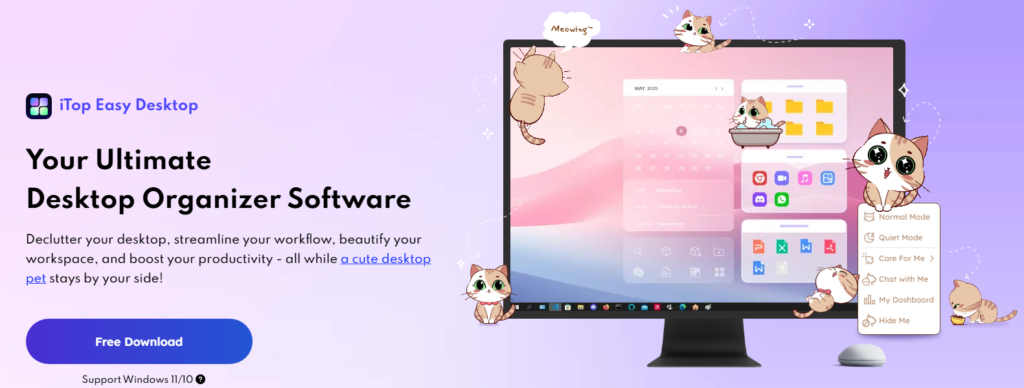
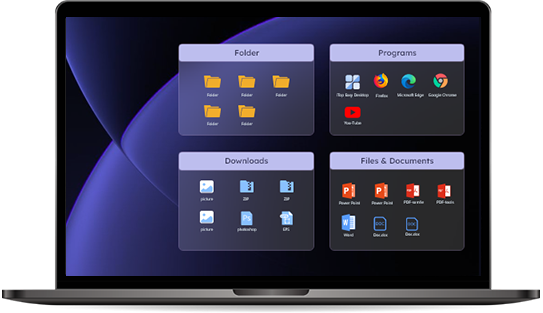
Its main idea is simple: instead of leaving every file and shortcut scattered across the desktop, you can group related items inside customizable boxes. The software also provides automatic organization through preset rules and lets users create their own organization rules.
- Work
- Documents
- Applications
- Downloads
- Projects
- Personal
That immediately gives the desktop a structure without requiring me to hide everything inside traditional folders.
The iTop Easy Desktop Features That Stood Out to Me
Smart Desktop Organization
The first feature I would recommend trying is Quick Start.
When you launch iTop Easy Desktop for the first time, it gives you the choice between Quick Start and Customize. Quick Start automatically sorts desktop items into different boxes according to preset rules. Customize gives you more control over arranging the items and creating your own boxes.
For a really cluttered desktop, Quick Start is a convenient place to begin.
Customizable Boxes
The boxes are probably the feature I found most useful.
You can create boxes based on your own workflow, rename them, and adjust their appearance. The Boxes section also includes Organization, Quick Actions, Layout, and Snapshot settings.
I like this approach because I’m not forced to use categories that don’t make sense for me.
If I’m working on several projects, I can create a box specifically for each important project instead of trying to fit everything into generic folders.
Automatic Organization Rules
This is where iTop Easy Desktop becomes more useful than simply dragging icons around.
The Organization section allows you to create rules for how desktop items should be grouped.
Once those rules make sense for your workflow, you don’t have to treat every new desktop item as another manual sorting task.
Private Box
Some files are better kept away from the normal desktop.
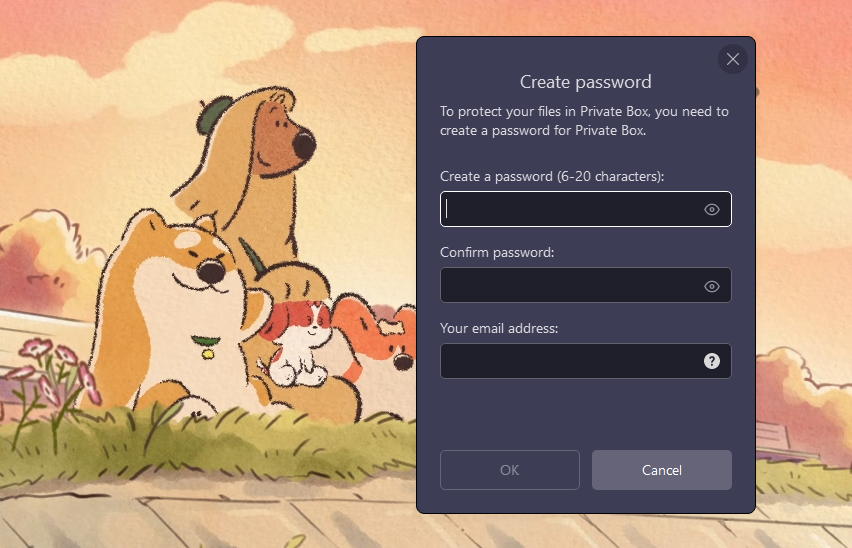
iTop Easy Desktop includes a Private Box designed to password-protect important files and folders. According to the official manual, this feature is available for Pro accounts.
I would use this for personal or sensitive documents that I don’t want openly visible.
Widgets and Productivity Tools
Another thing I liked is that iTop Easy Desktop isn’t limited to organizing icons.
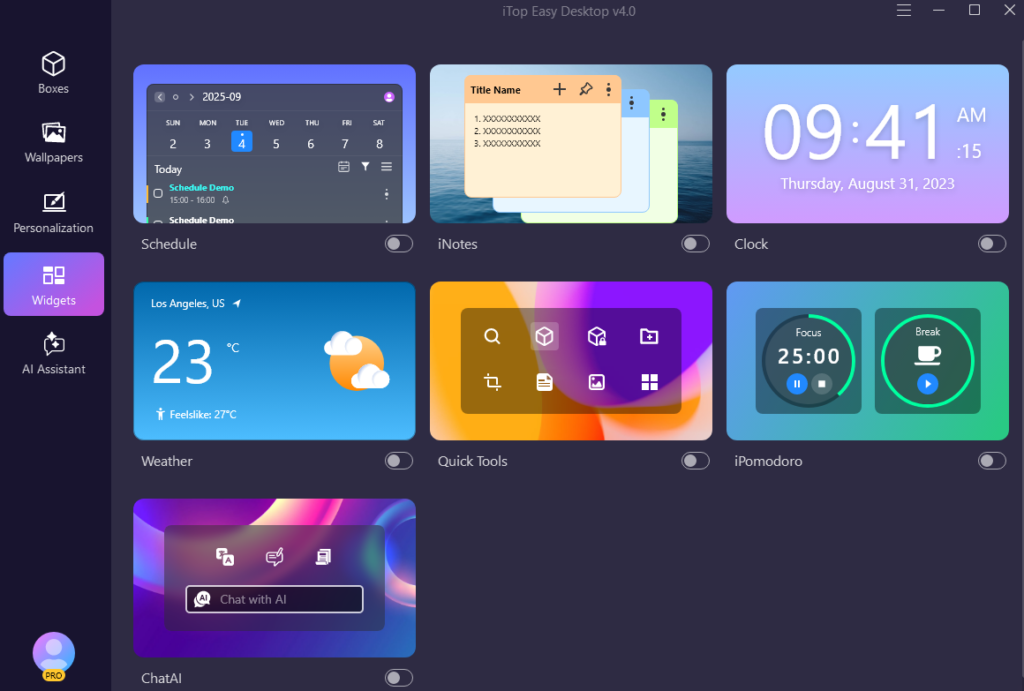
Its current manual lists seven widgets: Schedule, iNotes, Clock, Weather, Quick Tools, iPomodoro, and Chat AI.
The Schedule widget can also sync with Google Calendar or Windows Calendar, while iPomodoro can be used for focused work sessions.
These are small additions, but they can make the desktop more useful instead of simply making it look cleaner.
AI Assistant and Screenshot Tools
The AI Assistant combines ChatAI, Search, and Screenshot functions.
The available ChatAI tools include AI writing, translation, and summarization. Screenshot settings can also be configured with hotkeys for capturing the full screen, current window, or scrolling windows.
For someone who works with content regularly, having these tools accessible from the desktop can save a few extra clicks.
How I Would Set Up iTop Easy Desktop
After understanding the features, the setup process is fairly straightforward.
Step 1: Download and Install It
First, download this desktop organizer software from the official iTop website and install it.
The current V4 documentation lists Windows 10 and above on 64-bit systems, while older Windows versions are supported by an earlier V3 version.
Once installed, launch the program.
Step 2: Choose Quick Start
If your desktop is already crowded, choose Quick Start.
The software will automatically organize your existing desktop items into boxes based on its preset rules.
I would then review those boxes instead of immediately trying to customize everything.
Step 3: Create Your Own Boxes
Next, create categories that actually match your daily work.
For example:
Work → Projects → Documents → Applications → Personal
You can create a box directly from the Boxes panel or use several desktop-based methods described in the official manual.
The trick is not to create too many.
A simple system is much easier to maintain.
Step 4: Add Organization Rules
Now open the Organization section.
Create rules for the types of desktop items you regularly deal with. This can help keep your desktop organized instead of forcing you to repeat the same cleanup process every few days.
Step 5: Add Useful Widgets
After the files are organized, add only the widgets you actually need.
For example, you could use Clock, Schedule, Weather, or iPomodoro. If you manage appointments through a calendar, connecting the Schedule widget can also be useful.
Step 6: Customize the Desktop
Finally, personalize the appearance.
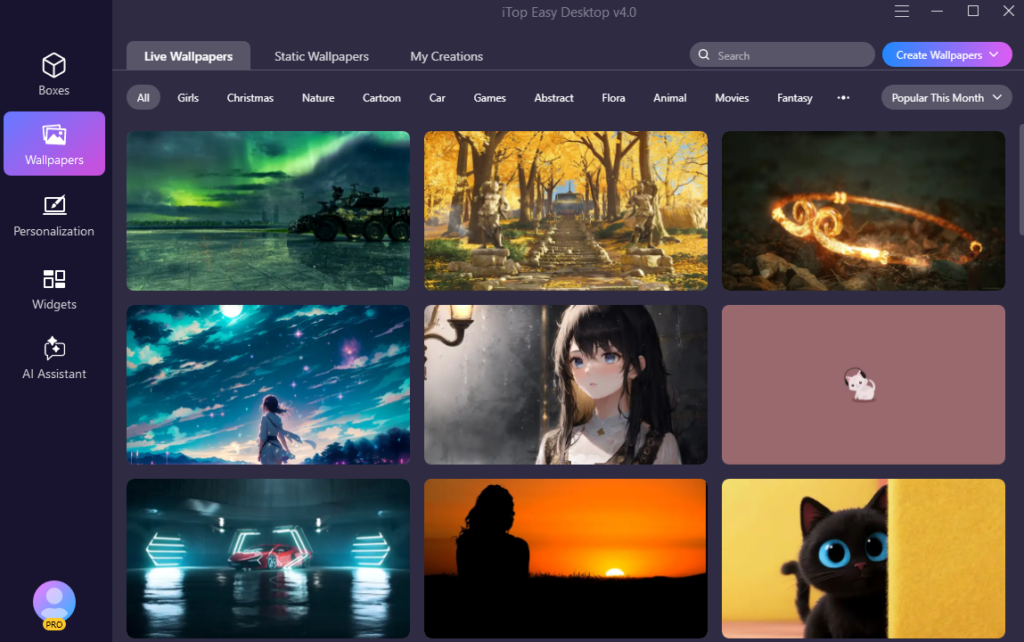
iTop Easy Desktop provides wallpaper options, including static and live wallpapers, while its personalization tools can modify elements such as themes, taskbar, Start Menu, desktop icons, and mouse settings on supported plans.
At this point, the desktop starts feeling less like a storage area and more like an actual workspace.
What Changed After Organizing My Desktop?
The biggest difference isn’t that I suddenly had fewer files.
I still had documents, screenshots, folders, and shortcuts.
The difference was that they finally had places to go.
Instead of scanning the entire screen, I could look inside the relevant box. Instead of repeatedly moving files around, organization rules could handle some of the repetitive work.
And when I wanted a cleaner screen, I could use the available quick actions rather than permanently removing useful shortcuts.
That is what makes the idea behind iTop Easy Desktop practical for me.
A Few Things I Would Keep in Mind
I wouldn’t recommend creating a box for every single type of file.
That can actually make things more complicated.
Start with four or five categories and see how they work. You can always add more later.
I’d also check which features are included in the free version before relying on a Pro-only feature such as Private Box or advanced personalization. The official documentation clearly distinguishes some features by account type.
Final Verdict
What I liked about iTop Easy Desktop is that it approaches desktop clutter as an organization problem rather than simply an appearance problem.
The customizable boxes give files and shortcuts a clear place, automatic rules can reduce repetitive sorting, and features such as Private Box, widgets, AI Assistant, Search, screenshots, and wallpapers add functionality beyond basic desktop management.
If your Windows desktop has gradually turned into a collection of everything you might need someday, I wouldn’t start by deleting files.
I’d start by organizing them.
Try Quick Start first, create a few categories that match your workflow, and then add organization rules once you understand how you want everything arranged.
For me, the real benefit isn’t having a prettier desktop. It’s finally knowing where everything is.
Frequently Asked Questions
1.What is iTop Easy Desktop used for?
iTop Easy Desktop is designed to organize Windows desktop files, folders, and shortcuts into customizable boxes. It also includes widgets, wallpapers, Private Box, Search, ChatAI, and screenshot functionality.
2.Can iTop Easy Desktop automatically organize desktop files?
Yes. Quick Start can automatically sort existing desktop items into boxes using preset rules. Users can also create custom organization rules through the Boxes section.
3.Does iTop Easy Desktop support Windows 11?
Yes. The current iTop Easy Desktop V4 supports Windows 10 and above on 64-bit systems, according to the official user manual.
4.Does iTop Easy Desktop have a password-protected area?
Yes. Its Private Box is designed to protect important files and folders with a password. The official documentation states that Private Box is available for Pro accounts.
5.Can I use AI tools in iTop Easy Desktop?
Yes. The AI Assistant includes ChatAI features such as AI writing, translation, and summarization, along with Search and Screenshot tools.
Read more: Common Signs Your Air Conditioner Needs Professional Repair
Effective Pest Control in Bowral: Keeping Your Home Safe with Southern Highlands Pest Control
What Happens if My Ex Stops Paying Child Support?

Leave a Comment