
To see how effective real-time protection is, I tested IObit Malware Fighter 13, a free antimalware solution. I checked how its different security layers detected and blocked various threats. This guide explains how it works, shares my experience, highlights key features, covers common protection issues, and offers useful recommendations for improving PC security.
What Is Real-Time Protection? Why One Security Layer Isn’t Enough
Real-time protection runs quietly in the background. It scans files, downloads, memory, and running programs for security threats. If malware is detected, it blocks it immediately.
One security layer cannot provide complete protection. Hackers use various attack methods, such as phishing, network intrusions, and credential theft, to bypass my PC’s security.
I learned the value of a layered security approach instead of depending on one solution. I combine real-time protection, firewall security, multi-factor authentication, and backups to better protect my PC. This layered approach helps keep my system protected even if one security measure does not work.
My Testing Setup For Testing Security Layers with IObit Malware Fighter 13

Before testing each security layer, I set up a controlled environment to ensure accurate results. It includes:
1. Test Environment
I prepared a controlled testing environment. I kept Windows fully updated before testing. I installed the newest IObit Malware Fighter 13 release and updated its malware detection database. This setup helped me evaluate its real-time protection under current conditions.
2. Security Layers Enabled
I activated all key defenses in IObit Malware Fighter 13 so I could test how its different security layers worked together to protect my PC. Each feature provides a different layer of protection, helping me test how well they defend my PC against various threats.
My Personal Experience Testing Every Protection Layer
I tested each protection layer to see how well it detected and blocked different types of threats. This hands-on testing helped me understand how each feature contributed to my PC’s overall security.
Test 1: Downloading Suspicious Files
After completing the suspicious file download test, I examined how IObit Malware Fighter 13 responded. I recorded each detection event to confirm which security layer blocked the test file and verify the results.
Below are the results I observed during the EICAR test file download.
Step 1: Test Download Protection
What Happened: I downloaded the safe EICAR test file from the official website. The software detected it during the download and blocked it before it could be saved.
Detection Result: Download Protection and Network Guard detected the EICAR test file, displayed a security warning, and blocked the download.
Step 2: Test File Guard
What Happened: I saved the EICAR test file as eicar.com on my desktop. The file was removed right after the save was complete.
Detection Result: File Guard instantly detected the file, showed a security alert, and removed or quarantined it.
Step 3: Check Protection History
What Happened: I accessed the Protection History section in IObit Malware Fighter 13 to review detected threats and security actions.
Detection Result: The security log recorded the EICAR test file, its location, the protection layer that blocked it, and whether it was blocked or quarantined. This confirmed that the security layers worked correctly.
Test 2: Visiting Risky Websites
I used safe browser security test pages to check how IObit Malware Fighter 13 blocks online threats. This helps me verify its web protection performance.
Here is a summary of what happened during the risky website test.
Step 1: Visit the Test Website
Web Protection Performance: I visited a safe browser security test page that simulated a risky website. Surfing Protection and Network Guard immediately scanned the connection and blocked the page before it loaded.
Phishing Protection: When I opened a phishing test page, the URL was blocked before any fake login page could appear.
Step 2: Review the Detection Alerts
Web Protection Performance: IObit Malware Fighter 13 displayed a browser warning and prevented me from accessing the test website.
Phishing Protection: A desktop notification identified the website as a phishing or unsafe page and confirmed that the connection had been blocked.
Step 3: Check Protection History
Web Protection Performance: I opened Protection History to review the web protection event.
Phishing Protection: The log recorded the blocked website, the detection time, the protection layer that responded, and the final status, such as Connection Blocked or Traffic Blocked. This confirmed that the web protection worked correctly.
Test 3: USB Malware Simulation
I tested removable devices to see how IObit Malware Fighter 13 responds. I verified that it starts an automatic scan and blocks suspicious files.
Here are the results of my Automatic USB Scan and Threat Detection test.
Step 1: Connect the Test USB Drive
Automatic USB Scan: I connected a USB drive containing the EICAR test file. The USB protection feature automatically started scanning the drive.
Threat Detection: The software detected the file during the scan and stopped it from opening or spreading.
Step 2: Review the Security Alerts
Automatic USB Scan: I saw the USB scan begin automatically after connecting the drive.
Threat Detection: IObit Malware Fighter 13 displayed a security warning and confirmed that the detected file had been blocked or quarantined.
Step 3: Check Protection History
Automatic USB Scan: I opened Protection History to review the USB scan event.
Threat Detection: The log showed the USB drive, the detected test file, the scan time, the USB Disk Protection layer, and the final action, such as Quarantined or Blocked.
Features of IObit Malware Fighter 13 That Helped Most
- Multi-Layer Security Engine & AI Detection: Identified the EICAR test file quickly during my malware detection test.
- Anti-Ransomware Protection: Blocked unauthorized programs from changing important protected files.
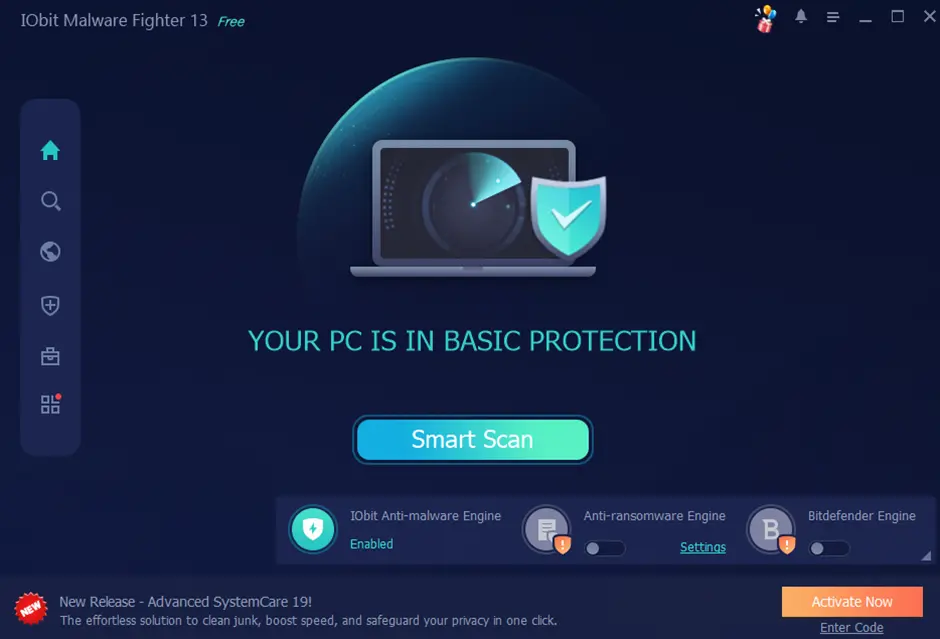
- Browser & Safe Download Protection: Blocked malicious URLs and prevented unsafe files from being downloaded.
- Startup Security & Real-Time Detection: Automatically checked the USB drive for threats after connection.
- Automatic Updates: Updated security databases to improve detection of test files and the latest threats.
Things I Liked During Testing
I noticed several useful features while testing IObit Malware Fighter 13. Here are the ones that performed best.
- Fast Detection: The software quickly detected and blocked test files and phishing pages.
- Low CPU Usage: It stayed lightweight and had little impact on my system during scans.
- Multiple Security Layers: Different security features worked together to protect my files, USB drives, and web activity.
- Clear Alerts: Notifications clearly explained the detected threat and the protection feature that blocked it.
- Minimal Performance Impact: It protected my PC without affecting daily tasks or gaming performance.
Tips to Make Real-Time Protection More Effective
IObit Malware Fighter 13 delivered good protection without changes, but enabling the right settings helped strengthen its security.
Here are my recommended tips.
- Keep Virus Definitions Updated: Keep the malware database current to improve threat detection.
- Enable All Security Layers: Use all available security options for better defense.
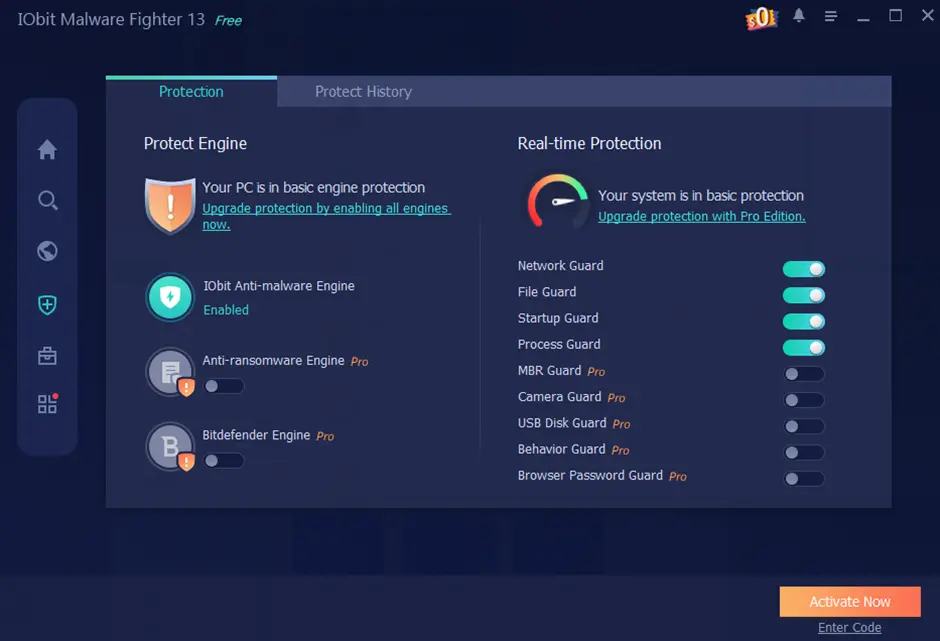
- Keep Protection Running: Keep background protection active for continuous threat detection.
- Scan USB Drives: Automatically analyze USB drives and external storage for malware and suspicious activity.
- Keep Windows Updated: Install security updates regularly to improve overall system protection.
- Pay Attention to Security Alerts: Do not approve unknown applications without checking alerts.
Final Words
My testing showed that IObit Malware Fighter 13, a free antimalware solution, quickly detected simulated threats. Its web protection, USB scanning, ransomware protection, and behavior monitoring provided reliable real-time protection throughout my tests. If you want to check your PC’s security, using safe test methods and a trusted free antimalware solution can help confirm that your real-time protection is working properly.
Also Read-Bowling: A Timeless Indoor Sport for All Ages





Leave a Comment