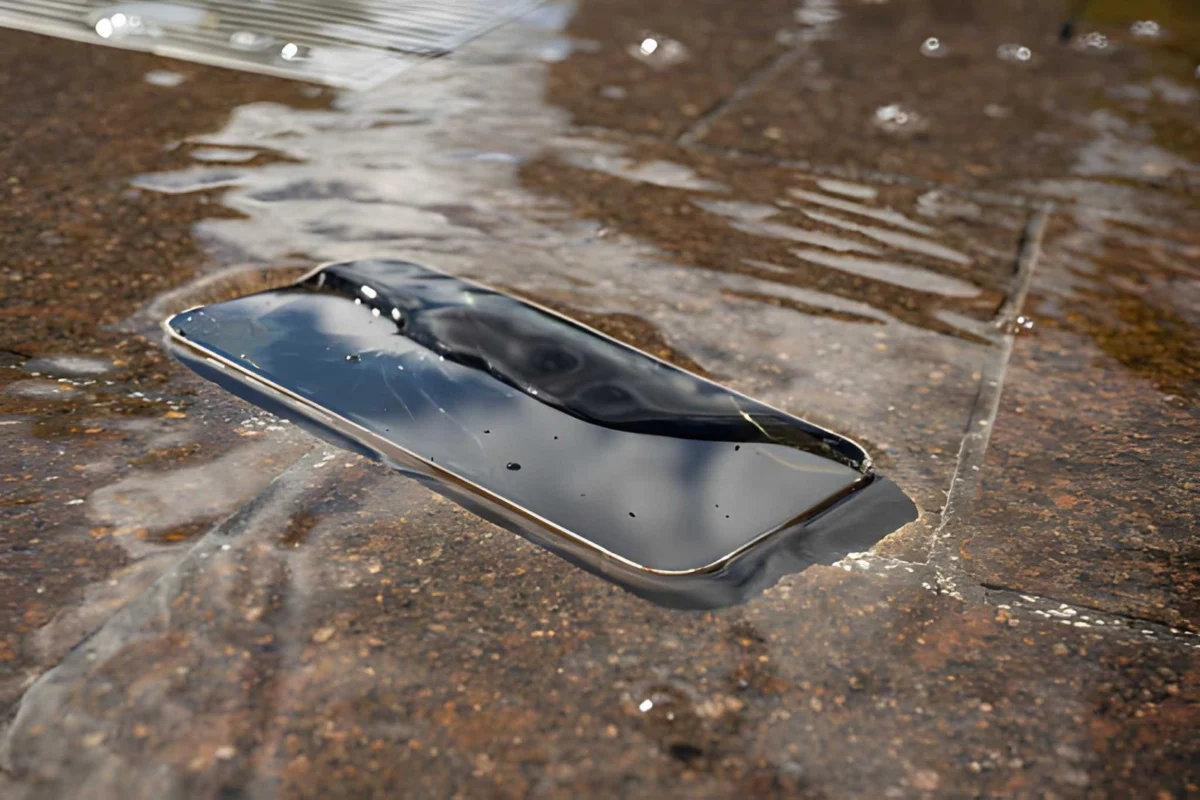

Seeing a liquid detection warning on an iPhone is frustrating. Seeing it still there a day later is alarming. The liquid detected in lightning connector alert exists to protect the device from short-circuit damage, but when it refuses to clear, many users assume the worst. Some do more harm than good by plugging in anyway, using compressed air incorrectly, or skipping straight to a rice bowl that does little to help.
This guide covers what the alert actually means, which drying methods work, and when to stop troubleshooting at home and visit a professional.
Key Takeaways
- A liquid detection alert that persists past 24 hours often signals corrosion, residual moisture deep in the port, or a sensor error.
- Air drying in a warm, ventilated space is the safest and most effective DIY method.
- Uncooked rice is largely ineffective and can introduce dust particles into the port.
- A force restart clears temporary sensor errors without risking hardware damage.
- Persistent alerts after proper drying require professional inspection, not repeated DIY attempts.
How iPhone’s Liquid Detection System Works
The sensor technology behind the alert
Apple introduced liquid contact indicators and moisture-detection sensors in iPhone 8 and later models. These sensors detect electrical conductivity changes caused by water or other liquids inside the Lightning connector or USB-C port. When moisture is present, the system blocks wired charging and data transfer to prevent short-circuit damage.
The alert appears as: “Liquid Detected in Lightning Connector — To protect your iPhone, charging has been disabled.”
This safety system is intentional. Charging through a wet port can permanently corrode internal components and, in rare cases, cause battery damage.
Why does the alert persist beyond 24 hours?
Several conditions cause the warning to remain active:
- Residual moisture deep in the connector housing, which takes longer than surface evaporation to clear
- Port corrosion from saltwater, sweat, or sugary liquids that leave conductive residue even after drying
- Sensor malfunction triggered by humidity, not direct liquid contact
- Debris or pocket lint trapping moisture against the sensor contacts
Immediate Steps to Take
Drying methods that actually work
Air drying
Air drying remains the most effective and safest method. Place the iPhone with the Lightning port facing downward in a dry, well-ventilated area at room temperature. A gentle breeze from a fan (not a heat gun or hair dryer) can accelerate evaporation without damaging internal components.
Allow a minimum of one to four hours before testing again.
Silica gel packets
Silica gel packets, the small desiccants found in shoe boxes and electronics packaging, are effective at drawing moisture from small spaces. Seal the iPhone in a zip-lock bag with several packets for two to four hours.
Why rice does not work
A 2014 study cited by Gazelle and repeated in multiple device repair analyses found that uncooked rice ranks among the least effective drying agents compared to silica gel and open-air drying. Rice also introduces starch dust and small particles that can lodge in port contacts, creating additional problems.
Heat-based drying risks
Avoid using a hair dryer, oven, or placing the iPhone in direct sunlight. Sustained heat above 35°C (95°F) can degrade the battery and warp internal components, according to Apple’s published operating specifications.
Troubleshooting steps after drying
- Force restart the iPhone. On iPhone 8 or later: press and release Volume Up, press and release Volume Down, then press and hold the Side button until the Apple logo appears. This clears temporary sensor errors.
- Inspect the port with a flashlight. Look for visible moisture droplets, green or white corrosion on the metal contacts, or compacted debris.
- Test charging. Use a wireless MagSafe or Qi charger to confirm the device still charges normally while the port continues drying.
When to Seek Professional Help
Signs that require expert diagnosis
Stop DIY attempts if any of the following apply:
- The liquid detection alert persists after 24 to 48 hours of proper drying
- Green or white discoloration is visible on the Lightning connector pins (a sign of corrosion)
- The iPhone charges intermittently or not at all, even after the alert clears
- Audio from the speaker sounds muffled, which can indicate moisture near internal components
Attempting to force-charge a corroded port accelerates oxidation and can make repairs more expensive or impossible.
What to expect at the Genius Bar
A Genius Bar appointment typically begins with a free hardware diagnostic scan. A technician uses Apple’s proprietary diagnostic tools to identify whether the issue is a sensor error or physical damage.
Repair outcomes and average costs vary by model:
| iPhone Model | Out-of-Warranty Liquid Damage Repair (Approx.) | AppleCare+ Coverage |
| iPhone 15 Pro Max | $599 | $99 incident fee |
| iPhone 14 Plus | $449 | $99 incident fee |
| iPhone 13 | $399 | $99 incident fee |
| iPhone 12 | $349 | $99 incident fee |
| iPhone SE (3rd gen) | $299 | $99 incident fee |
| Source: Apple Support pricing page, 2024. Costs vary by region. | ||
AppleCare+ covers up to two incidents of accidental damage per 12-month period, each subject to a service fee. Standard Apple warranty (one year) does not cover liquid damage, as liquid contact indicators inside the device change color permanently on contact with moisture.
iPhone Liquid Damage: Key Statistics
| Metric | Data |
| % of iPhone repairs attributed to liquid damage | Approximately 30% (iFixit, 2023) |
| Success rate of air drying for minor exposure | ~75% within 24 hours |
| Success rate of rice drying method | ~13% (Gazelle study analysis) |
| Corrosion onset after saltwater exposure | Within 1 to 2 hours |
| Average time for sensor reset after full drying | 1 to 8 hours |
Prevention Tips That Reduce Risk
Protective gear worth using
- Cases with port covers block incidental moisture during outdoor use
- IP68-rated cases provide submersion protection for iPhones that already have IP ratings, adding a second layer of defense
- Screen protectors with raised edges reduce water pooling near the device
Environments to be cautious around
- Pool decks and ocean environments expose the Lightning port to chlorinated or saltwater, both of which cause faster corrosion than fresh water
- Gyms introduce sweat, which is saline and conductive, into the port during charging
- Bathrooms with active showers create high-humidity microclimates that trigger sensor alerts even without direct liquid contact
Maintenance habits that extend port life
- Use a dry, soft-bristle toothbrush once a month to clear lint and debris from the port
- Store the iPhone away from the bottom of bags where moisture collects
- Avoid charging immediately after swimming or heavy exercise, even if the port looks dry
Act Fast, Then Know When to Stop
A liquid detection alert that clears after proper air drying and a force restart is a minor inconvenience. One that persists beyond 24 to 48 hours, or appears alongside charging failure and visible corrosion, is a hardware problem that DIY methods will not solve.
The most common mistake users make is cycling through multiple drying attempts over several days before seeking professional help. Each delay gives corrosion more time to spread. Act quickly with the right method, then escalate to an Apple-certified technician if the alert does not resolve.
Wireless charging keeps the device functional while the Lightning port dries or awaits repair. Use it.
Frequently Asked Questions
Can a liquid detection alert appear without the iPhone actually getting wet?
Yes. High ambient humidity, condensation from temperature changes, and sweat exposure can trigger the sensor without direct liquid contact. A force restart often clears these false positives within minutes.
Is it safe to use the emergency override to charge through a liquid alert?
Apple provides an emergency override option, but using it while the port is wet risks permanent corrosion to the charging contacts and internal board components. Only use the override in a genuine emergency and replace the charging cable afterward.
How long should drying take before the alert disappears?
For light moisture exposure, most alerts clear within one to four hours of air drying. Deep exposure or moisture near internal sensors can take up to 24 to 48 hours. Anything beyond that warrants professional inspection.
Will Apple replace an iPhone for free if liquid damage voids the warranty?
Standard Apple warranty does not cover liquid damage. AppleCare+ does cover accidental damage, including liquid damage, for a $99 service fee per incident. Without coverage, repairs are billed at full out-of-warranty rates.
Does the liquid detection alert affect iPhone models with USB-C?
Yes. iPhone 15 and later models use USB-C, but Apple’s moisture detection system functions the same way. The alert language changes to reference the USB-C connector instead of Lightning, but the troubleshooting steps are identical.
Read more: The Business Benefits of Adopting Sustainable Energy Solutions
Keratin Tip Extensions for Face Framing Haircuts: Care and Maintenance Guide
Top Benefits of Pressure Cleaning in Sydney for a Spotless Outdoor Space

Leave a Comment